RPS Smart Pane

Command Licensing and Default Menu Location
- The RPS Smart pane Command is licensed to the PS Smart Suite Command Library
- The RPS Smart Pane command is located on the Smart Suite menu ribbon
- The RPS Smart Pane is located in the Files menu group
Command Release History
Dec 2025 - Version 1 released with RPS Command Library v2025.4
Command Description
The RPS Smart pane commad is the first RPS command that creates its own viewing pane so that it can be docked alongside other panes like the command Pane, project Explorer, View Filter Manager, Properties Pane etc. or so it can be floated and left open on a second monitor while you are working. Smart Pane provides access to the following new RPS capabilites
- Spreadsheet Editor
- Rich Text Edior
- PDF Reviewer
- Project Schedules
- Satellite / Street Map
Our goal with Smart Pane is to provide you with a powerful management pane to assist you with managing and tracking your projects, and to provide improved ways to create deliverables as well as assist you with TBC workflows.
Video Demonstration
The following video shows you how to us the RPS Smart Pane command
Command Interface Description
The RPS Smart Pane interface looks as follows
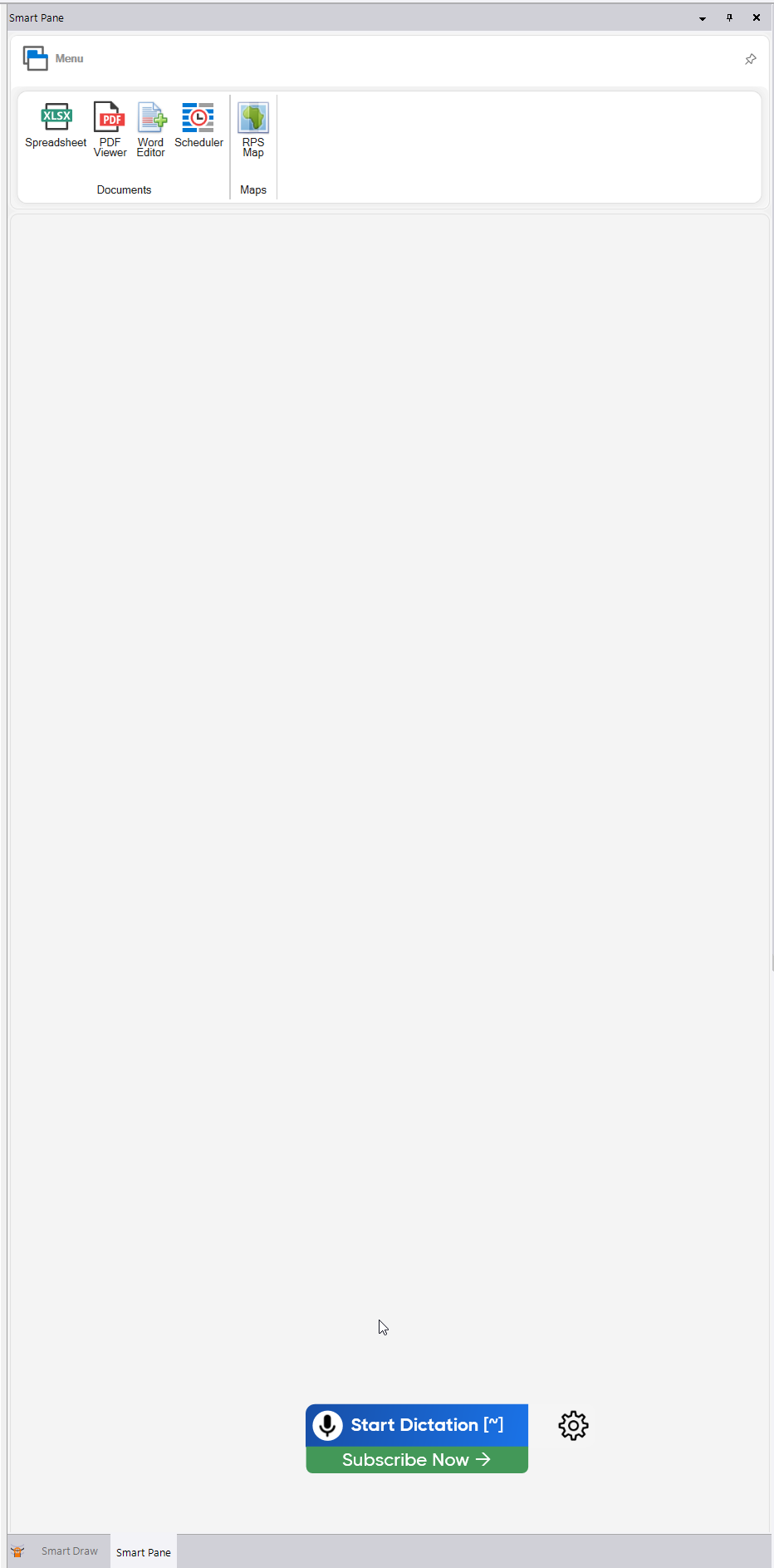
The command has 5 primary functions currently, those being
- Spreadsheet Editor
- PDF Reviewer
- Word Rich Text Edior
- Project Scheduler
- RPS Map - Satellite / Street Map
Click any of the 5 buttons to open that function within the smart pane. For example if you click the Spreadsheet button a spreadsheet very similar to Microsoft Excel will open in the Smart pane.
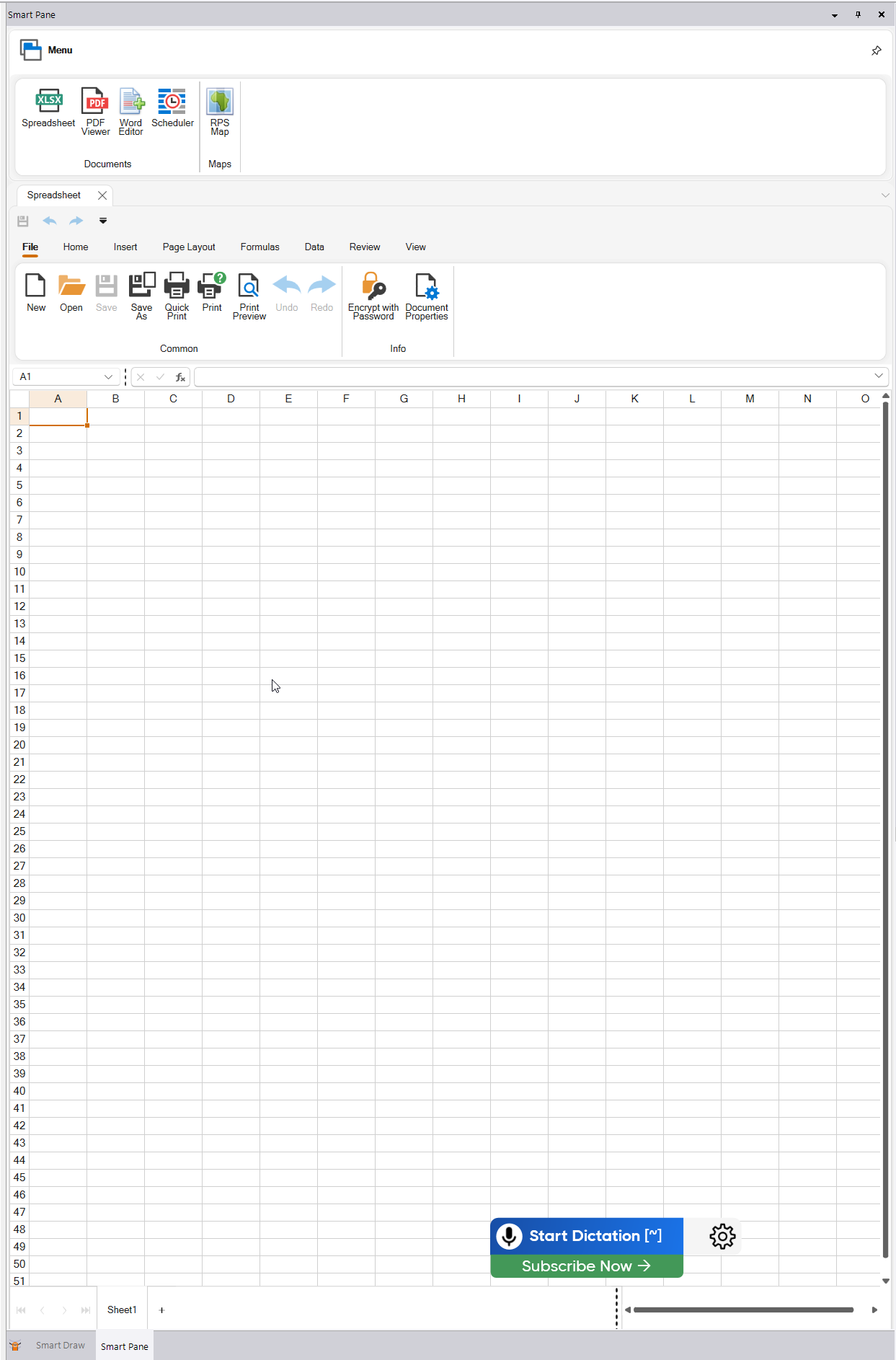
When you open the Spreadsheet tool, you can open existing spreadsheets from .xls(x) files, or you can author and save a new spreadsheet. The spreadsheet tool is also now incorporated in commands like Smart Feature, Smart takeoff and Smart Profile to provide advanced reporting capabilities. Yiou can load spreadsheet masters for commands like the RPS Edit Alignment as a Spreadsheet command to provide an easy way to tabulate anbd capture horizontal alignment, vertical alignment and slope tables for corridor projects. The spreadsheet tool has all of the standard spreadsheet formula capabiliyties, graphing and chart tools as well as advanced capabilities including pivot tables.
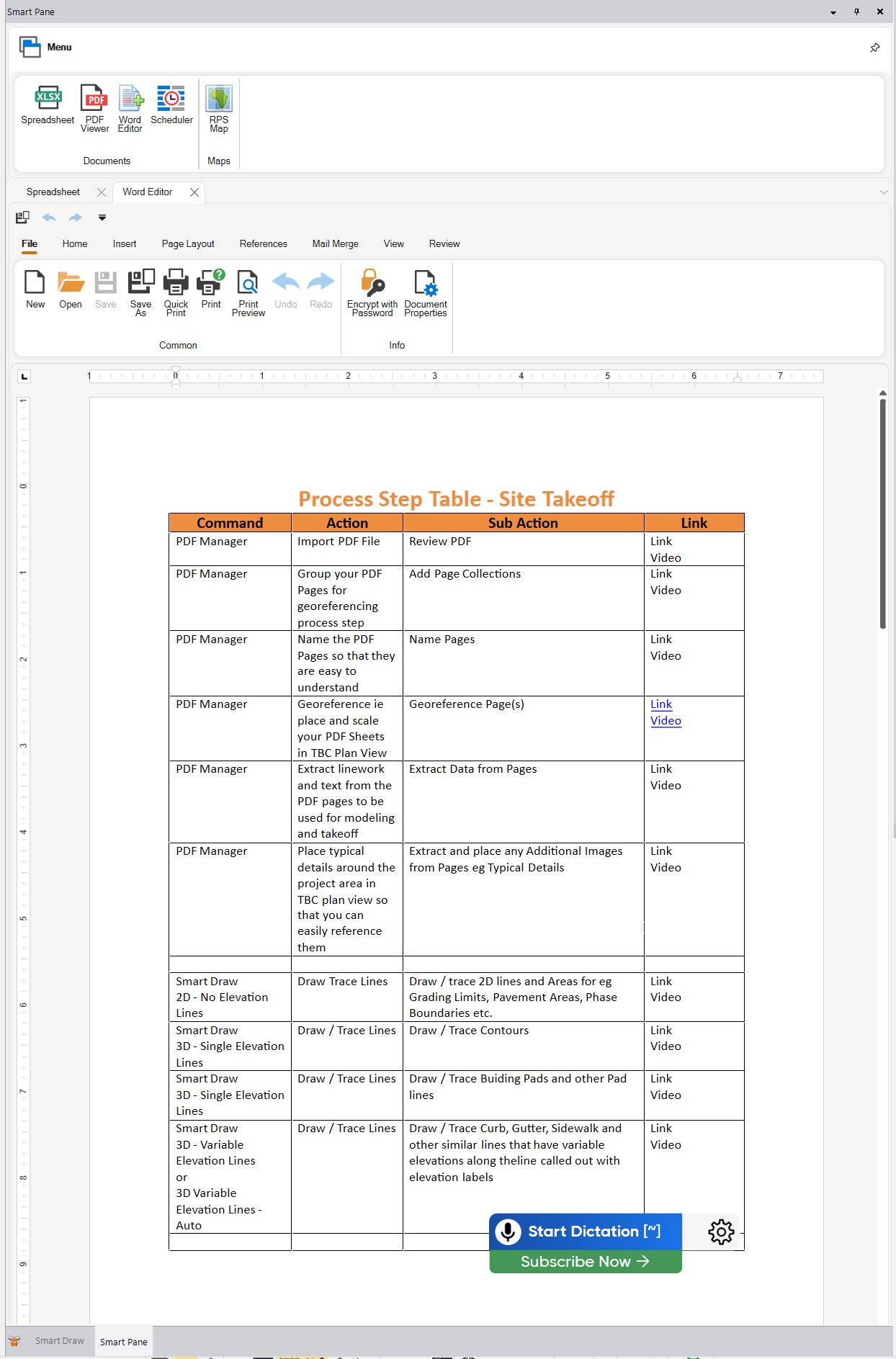
When you open the Word Editor, it will allow you to open Word Documents )*.doc(x) files and view / edit them directly in the smart pane. You can also author new documents and save them as .doc files. The word editor is a rich text format editor, and allows the creation of high quality documents and reports. You can also load e.g. Help files tha provide you with suggested workflows and commands to use in those workflows for example. You can also copy and patste between TBC and the Word Editor to embed 3D Views, Cut Fill Maps and more into reports, you can also copy data from the Spreadsheet tool or embedded reports to complete your reports.
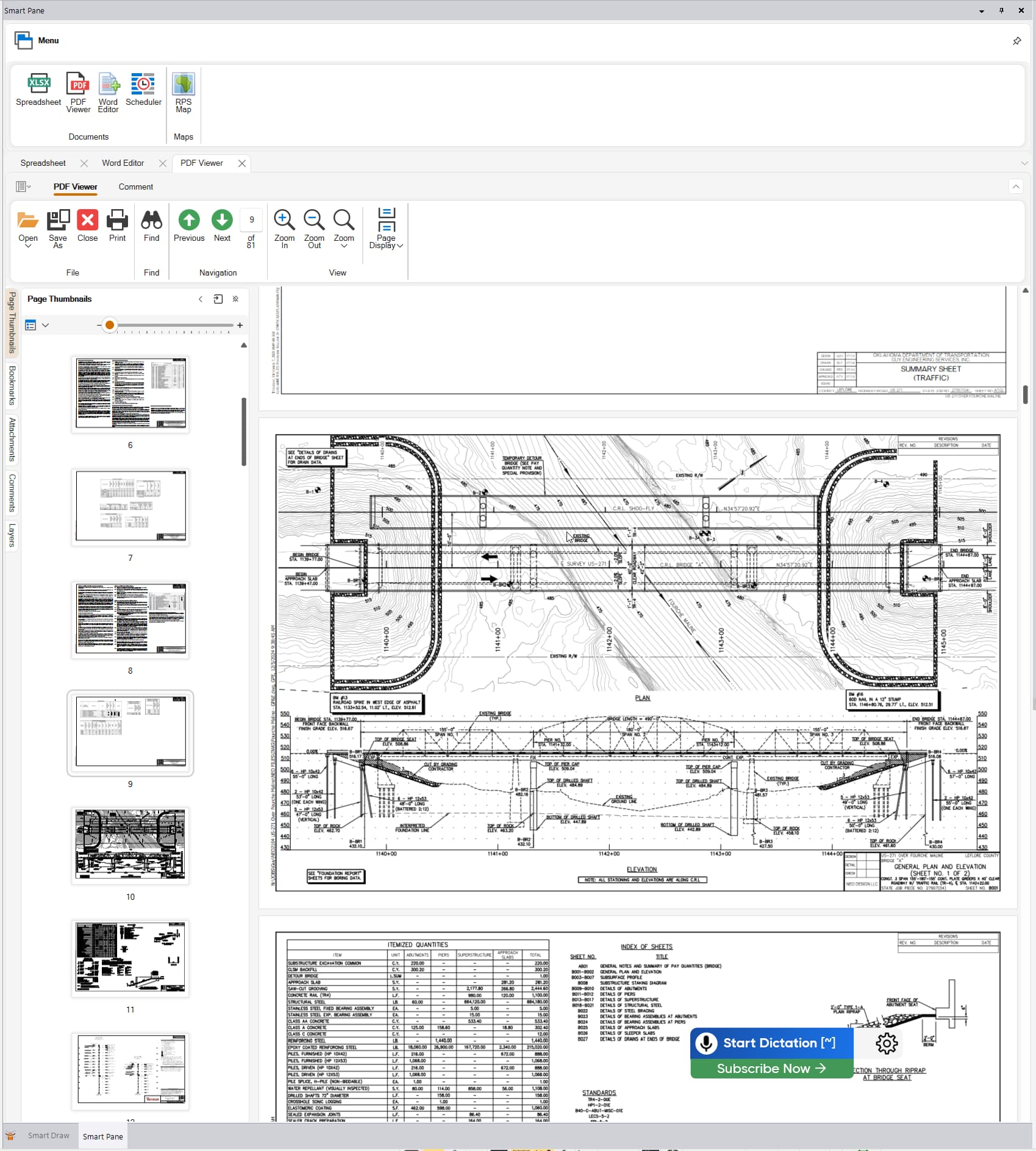
When you start the PDF Viewer, you can select the PDF file that you wish to view. The PDF Viewer can be open while you are working on the project so you have full review and comment capability as well as mark up capability while working on the project.
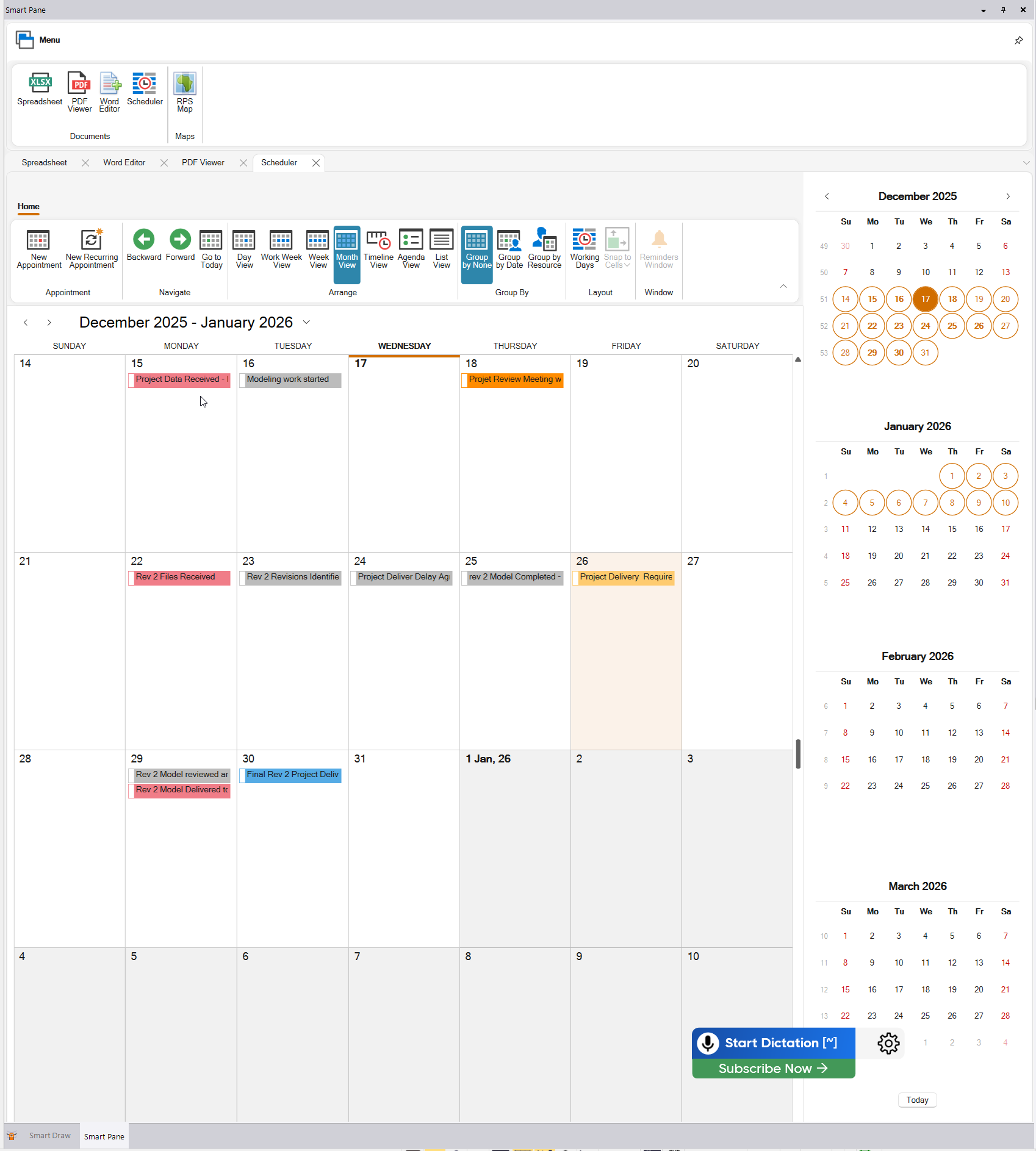
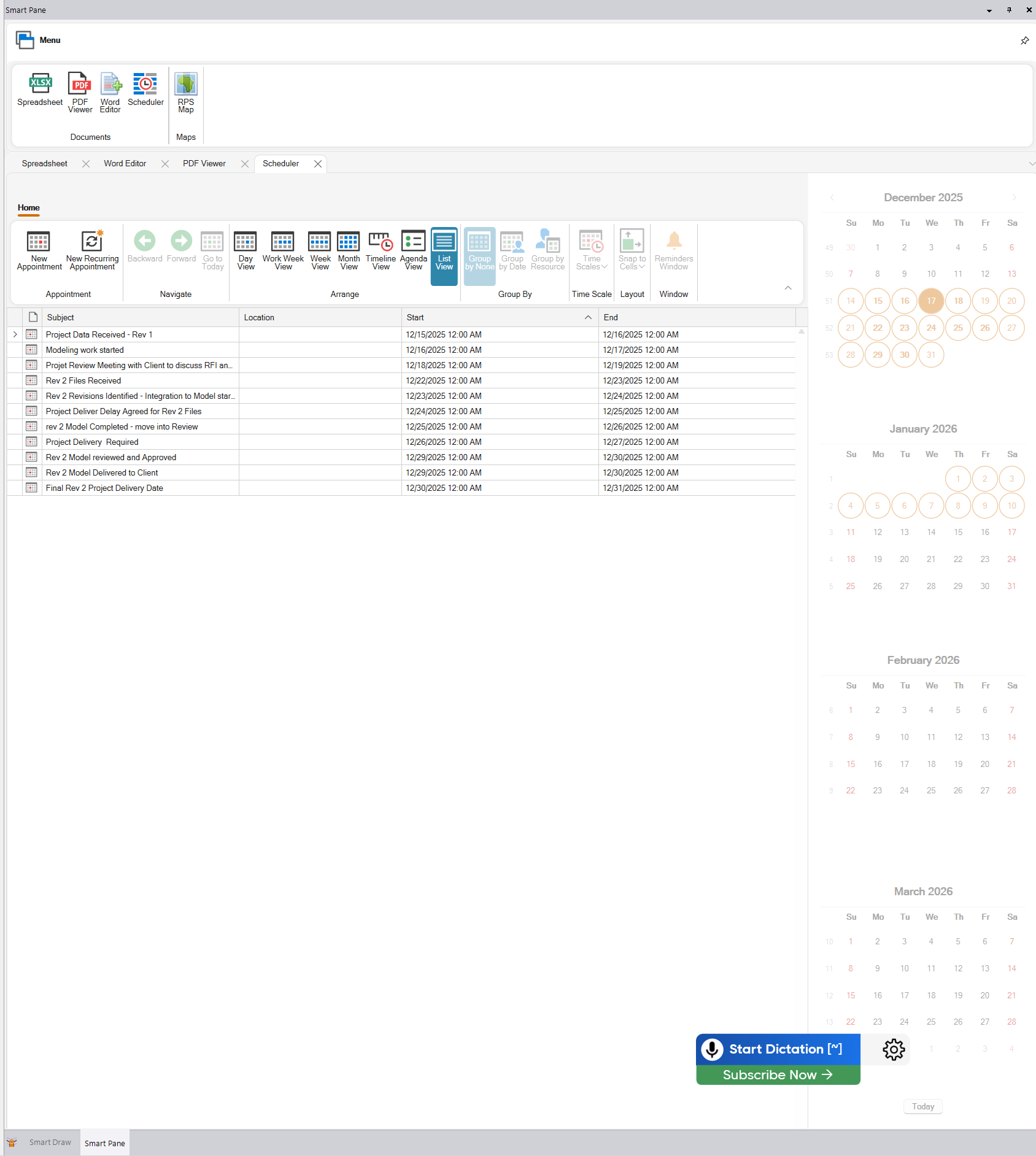
When you open the Scheduler, it creates a calendar file in the current projects project folder which is unique to this project. The scheduler allows you to capture important project milestones, deadlines, when files were receiverd when revisions came in, when meetings are planeed etc that relate to the project, allowing you keep a record of time spent building the project and when you created and handed over final deliverables etc.The scheduler allows you to see a Day, Week, Month view or a list view of the activities relating to the project, allowing you to track who did what and when for the project.
Month View
List View
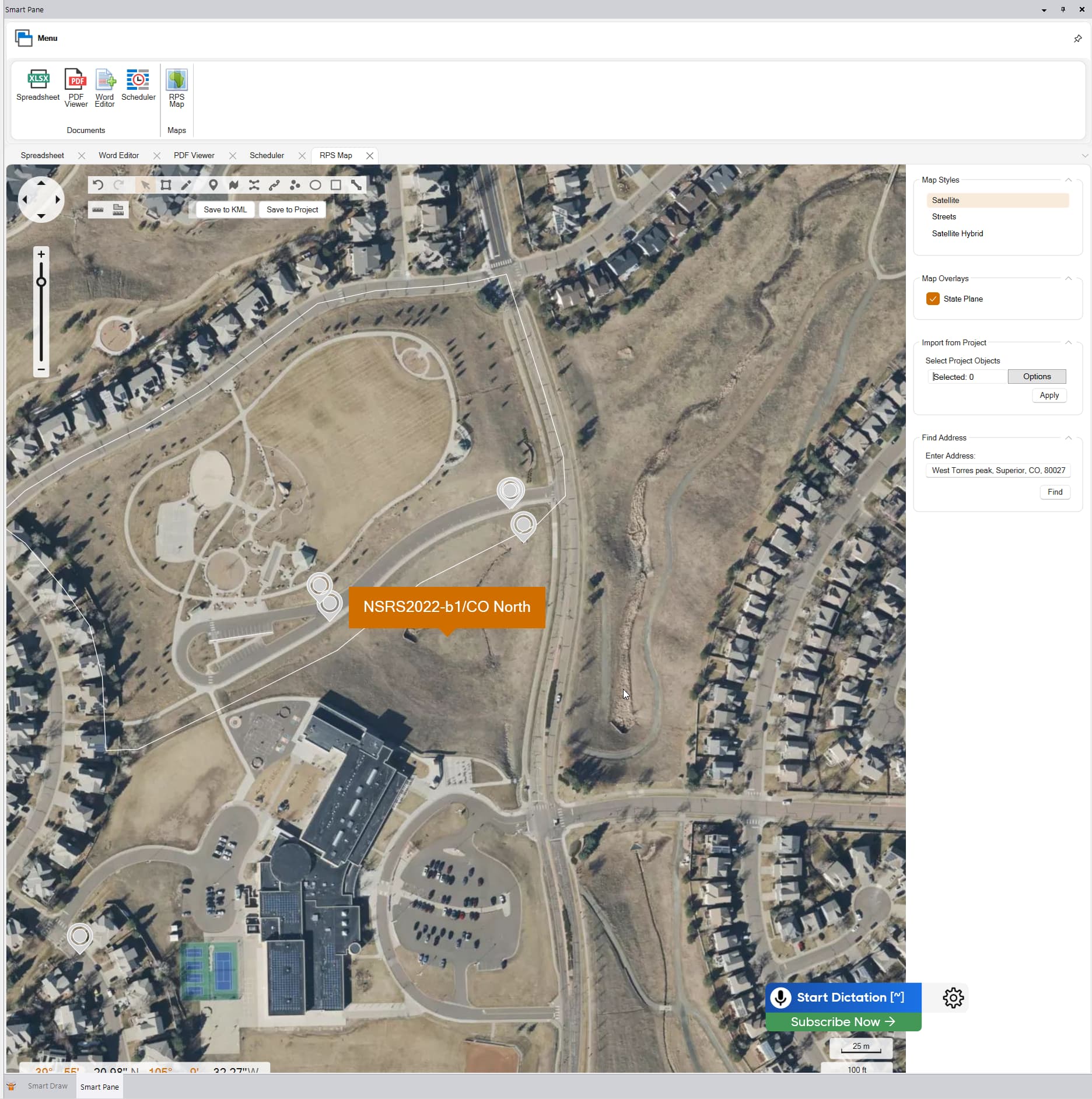
When you open the RPS Map function, it opens a Satellite Image / Street map base and allows you to find eg the Street or Zip Code addess for your project, determine which coordinate system / zone you are in and establish key points, project boundaries, haul routes, borrow / waste site locations etc that can initiate your project in TBC.
We plan to add more management tools into Smart Pane in the future.
Smart Pane Controls
When you run the Smart Pane command, you will find that it opens as an additional pane in the Command pane area of your TBC setup. In the same way that you get multiple tabs in the Project Explorer / View Filter manager / Selection Explorer panes, you will find similar tabs at the base of the Command Pane (if the command Pane was running when you fired up Smart pane. If Command Pane was not running you will find that Smart Pane opens up a Pane of its own where the Command Pane would normally open. Click the Smart pane tab to open Smart pane.
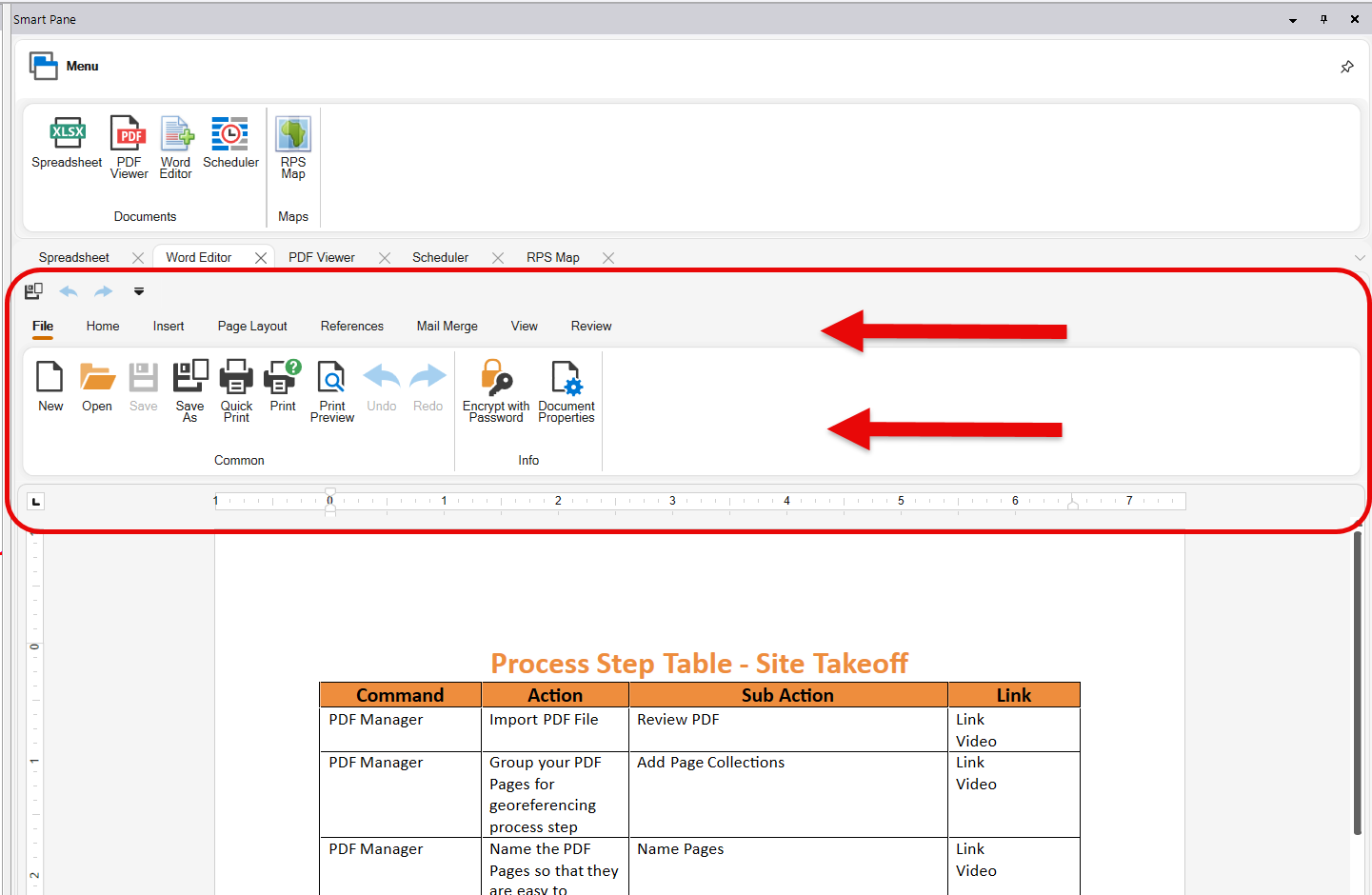
Each of the 5 Smart pane functions will open up a tab or tabs in the Smart pane. The tabs will be displayed just above the graphics or spreadsheet etc window as shown here.
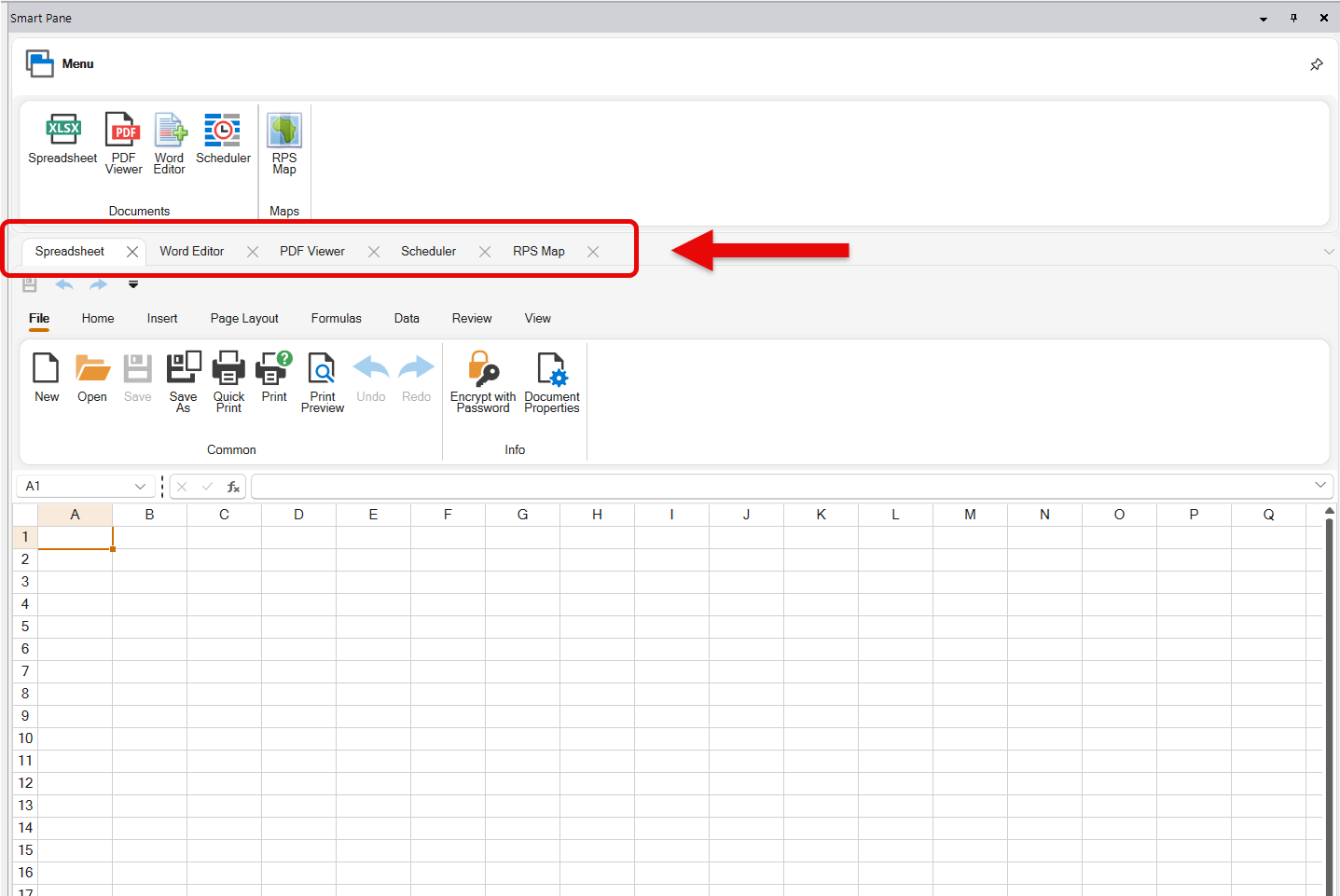
If you right click on a Tab, you can float that Tab so that it becomes a floating pane that you can drag off onto a second screen. When you wnt to Redock the pane, simply right click in the very Top Header Bar of the floating pane and select Dock from the pop up menu.
The right click menu also provides the ability to close all panes excluding the one you have open, to create a new horizontal or vertical tab in the pane to help organize the tabs so that you can see 2 or more windows of uinformation at the same time.
Each of the functions will have its own menu and control options. The spreadsheet, PDF Viewer, Word Editor and Scheduler all have functionality that is the same as Excel, Word, Acrobat / Bluebeam, Windows / Outlook Calendar or traditional map Viewers like Google Maps / Earth. here are in some cases unique RPS additions to those standards which will be covered in detail below.
Spreadsheet Functions
The Spreadsheet function is an Excel like Spreadsheet editor, that works almost identically to Excel itself.
The Spreadsheet has the ability to have multiple tabs, formatting like any other spreadsheet, formulas, tables, graphs and charts etc.
You can enter formulas into cells, the formulas use standard Excel formatting and functions. Use the Function Library from the Formulas menu to see the capabilities of the spreadsheet.
You can create Pivot Tables from selected data to create a summary set of results from the selected data.
You can add pictures by inserting an image or using Copy 9CTRL C) and paste (CTRL V) type functions.
You can Group and Ungroup Rows ior Columns, create sub totals, apply filters and data sorts just like Excel.
You can also Protect and Unprotect cells to lock formulas or Titles and headers of tables so that they become non editable.
You can freeze panes to lock Column or row headers etc.
Th spreadsheet tool will open and save files as an Excel Spreadsheet and in other common formats like CSV, PDF, TXT, XLS, XLM, XLT.
Word Editor Functions
The Word Editor is a Rich text editor, similar to Microsoft Word. It uses all of the standard Word like functions like select and CTRL B to Bold Text, Selectand CTRL I to italicize text, CTRL U to Underline text. It has the ability to add Tables, full color formatting, set up format styles, use superscript or subscript, special characters and set sizing of text characters. It has the tabs, indents, bullets and numbering as wll as all justification option.
You can also add custom Headers and footers, define templates, add bookmarks and hyperlinks.
You can add tables of contents, insert captions, add footnotes, end notes etc.
You can also add comments, track changes and do full reviews of the document.
The Word editor also will open and save files in a wide variety of formats including DOC, DOCX, DOT, PDF, HTML, RTF, TXT, XML and more).
Using clipping tools like Snagit, Windows Snip and Stich or Sharex, you can capture screen grabs from TBC Graphical Reviews and paste them into the editor, to assit in building of final reports.
While working in TBC, you can load an RPS - TBC workflow guide that provides step by step instructions as well as the names of commands that you should be using to execute a task.
PDF Viewer Functions
The PDF Viewer is aso incorporated into the RPS PDF Manager command. The controls in both commands are similar but not identical. The PDF Viewer in Smart Pane has the additional ability to add Comments and to mark up a PDF while you are working in TBC. This allows you to have the PDF viewer on a second screen, and to add comments to the PDF or mark up the data that you have utilized in your model (Spot Elevations, Coordinate Tables etc.).
The controls for the PDF Viewer can be found on the Right Click menu, in the menus or in the Tabs found in the top left corner of the graphics window.
The Right click menu provides access to the following controls
- Select Tool - Select individual PDF File Objects or Left click and drag the cursor over objects that you want to select. The selected items can then be copied to the clipboard, highlighted with a selected color, you can strike through the item to show that it has been used or checked, or underlined for the same type of purpose. the actions are accessed using a Right click menu available when you have items selected on screen.
- Hand Tool - Pan around in the graphics window
- Marquee Zoom - Zoom using a Window defined using Left Click and drag window. You can also Zoom In and Out, or to a % factor of the page etc. using the menu controls or by holding CTRL and moving the scroll wheel of your mouse.
- Previous View - Zoom to the previous view
- Rotate Clockwise - Rotates the current plan sheet 90 degrees clockwise. repeat the process to repeatin 90 degree steps to generate the appropriate viewing angle for the plan sheet.
- Print - Print the entire file or selected pages of the PDF file.
- Find - Search the PDF File for specific text items. Text search can be any characters, while words and can be case sensitive. The located text will be displayed with an orange highlight. You can step through the identifed text objects using the previous and next buttons.
- Select All - Selects the entire text based content of the PDF File. The selected items can then be copied to the clipboard, highlighted with a selected color, you can strike through the item to show that it has been used or checked, or underlined for the same type of purpose. the actions are accessed using a Right click menu available when you have items selected on screen.
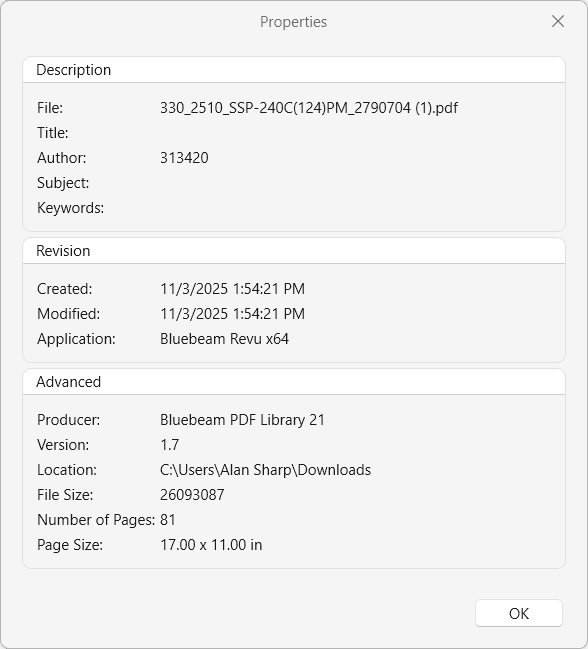
- Document Properties - review the source PDF File page sizes (aids when selecting the right paper size if you need to print out a copy of the file or pages of the file). Also displays other useful file property information.
The tabs provide access to the following
- Page Thumbnails - Navigate te PDF File using Page Thumbnails
- Bookmarks - review the Bookmarks that are in the PDF File
- Attachments - Not Functional at this stage
- Comments - Review peoples comments or addadditional comments to the PDF pages.
- Layers - Review the layers of the PDF if it is a layered PDF file.
Scheduler Functions
The scheduler is a traditional Calendar Tool that allows you to capture specific dates / Ties that relate to the project that you are working on. The scheduler records the entries in a calendar file stored in the Project’s Project Folder.
Use the menu options to cange the display to show
Day View - One day of information only
Week View - One week of information only
Month View - One month of information only
Timeline View - shows the calendar entries in a time line view - one day at a time
Agenda View - shows a one day view of all the activities recorded or planned for that day
List View - shows a detailed list of all entries made in the calendar for the entire project duration
You can restrict the view to only show scheduler items that fall within the working day (8:30am to 6:00pm), and you can set the Time Scales for entries in the calendr to eg 15, 30, 10, 6 etc minute sections for more precision tracking of your time as needed.
You can set recurring project metings and also set reminders, note that the reminder will only show up if you have the project open and working.
On the right side of the scheduler pane you can always see the current month and future months aloowing you to click a date in the future in order to make an entry for that date.
RPS Map Functions
In the RPS Map function, you will find the following special RPS Controls.
Map Styles
There are three map styles available, select the view that you require.
- Satellite
- Streets
- Satellite Hybrid (Satellite plus Streets)
Map Overlays
We are currently providing you with one Map Overlay. This one provides you with the US State Plane Coordinate System and Zone Map, s that you can enable the overlay, visually see the zone map, but also can click anywhere on the map and it will tell you which US State Plane (NAD 83 or NSRS2022) state plane zone you are in. You can then use this information to set the current TBC project to the correct state plane zone for the project. use project Settings - Coordinate System - Change to select the appropriate Coordinate System and Zone. We have found that the TBC Map Base and RPS Map base are correlated perfectly when you use the new NSRS2022 coordinate systems for each state.
Import from Project
Once you have set up the correct State Plane Zone for the TBC project, you can select TBC objects and use the Import from project function to import the TBC objects into the RPS Map. rom here you can export a KML file having verified that your data sits correctly in the map viewer. Again we have found that Google Earth and RPS Map are best correlated using the NSRS2022 coordinate systems.
Find Address
You can use the Find Address to search for a Zip Code or Street Address, examples would include
80027, CO, USA would find the center of zip code 80027 in Colorado USA
85706 would find the center of Tucson AZ
10356 Westmoor Drive would find the Trimble HQ in Westminster CO
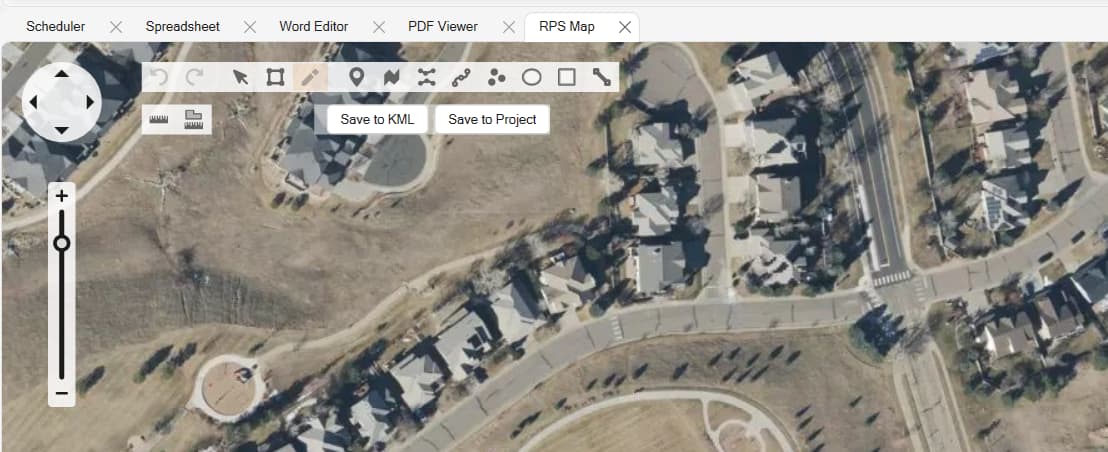
Once you have found the address you can find the specific project location, and then use the map drawing tools to add points, lines, boundaries etc onto the map which you can then “Save to Project” which will copy the drawn map objects into the TBC project. By doing this you have enabled the ability to turn on the TBC Satellite or Street Map view and should find that the Map Views now perfectly correlate.
The Map Drawing Tools are a temporary overlay, and remain current while the RPS map pane is open. When you close the pane, the drawing elements are cleared from the map view. If you want them to be recoverable, Save them to your TBC Project and then later you can select them in TBC and use the Import from Project function to bring them back intio the RPS Map pane.
The Map Drawing Tools are found at the top of the Map graphics window
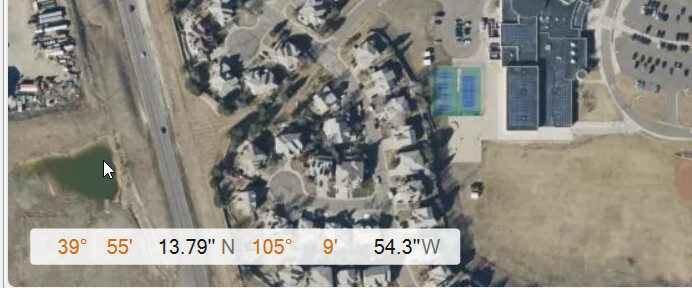
Note also that at the base of the map graphics window you can find the Lat Long o the current cursor position, that can be handy if you are trying to establish a Global Point in the TBC project in order to enable the background map service.
###RPS Maps Video Demonstration
Feedback and Enhancement Requests
If you would like to provide feedback on the use of the Smart Pane command or to request enhancements or improvements to the command please click Reply below and post your ideas and comments.