Cloud Services - Bird Bath Analysis

Function Overview
Analyzes a surface model and highlights all low points with a circle on a layer to indicate all points on a selected surface model where all the triangles around that point slope downhill to the point. This identifies areas on a surface model where water will collect and pool. Ideally these points will align with drainage inlet points, so it acts as a check on storm water drainage models, but also will flag low points in a surface model that maybe are not meant to be there i.e. poor triangulation of a surface model.
Video Demonstration
The video below shows how to use the Bird Bath Analysis Tool
Release History
July 2025 - First Version Released
Command Inputs
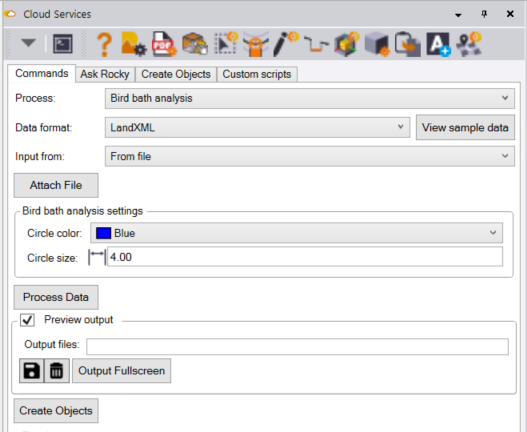
The Bird Bath Analysis function interface looks as follows
Data format
The process requires a surface model. The surface model can be provided as a TBC generated LandXML Surface Model file, or as a Surface Model selected from the TBC graphics area. In either case the data is delivered to the AI server using a LandXML format (only option at this time).
Input from
Select either From file or From project data.
When you select From file, click the Attach File button to browse for and select your LandXML file.
When you select From project data, select the surface that you want to use for the analysis graphically.
Bird bath analysis settings
The analysis finds the bird bath locations in the model and draws a circle at the identified bird bath locations, The Bird Baths are placed on layer SLP - Surface Name - Bird Baths in Layer Group 99L - DRAINAGE ANALYSIS. You can define the Circle Color and Circle Size here. Use a circle size of e.g. 4’ radius and select the color of your choice. The lineweights are increased to 1mm as the layer lineweight setting to make the bird bath circles larger.
Process Data
Click the process data button to execute the analysis. On completion, the bird bath circles will be drawn on the designated layer and in the designated color.
The end result looks as follows
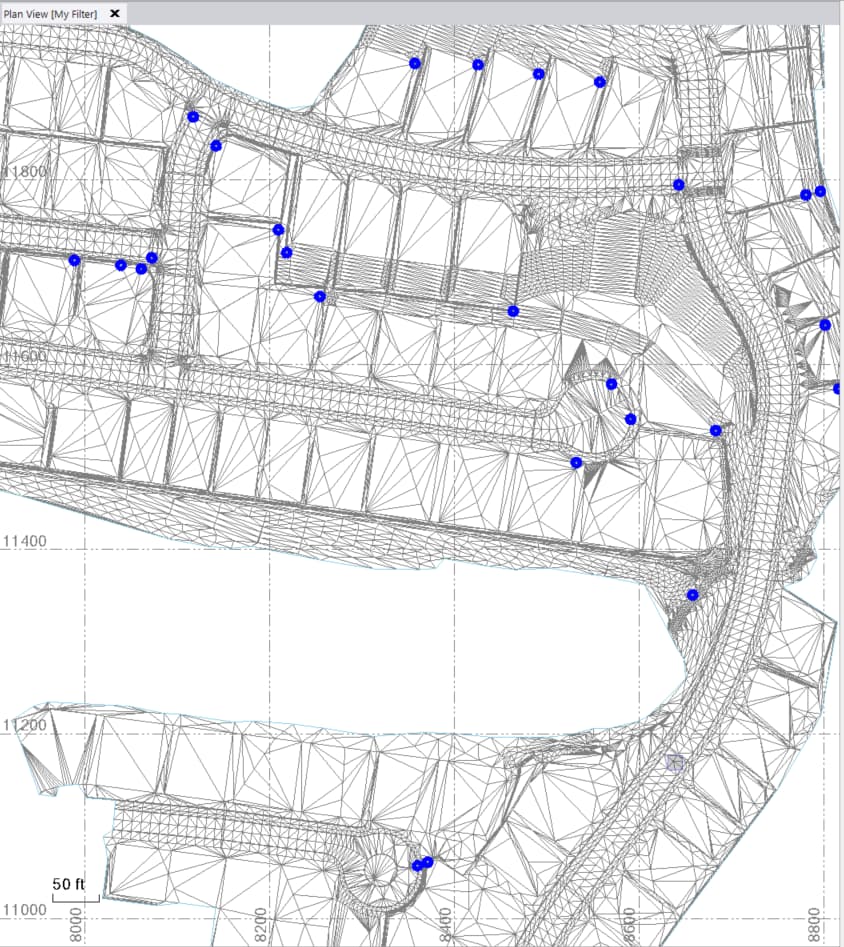
When looking at a Design Model, you should find that the “Bird Baths” lie at the drainage points for the Storm Sewer Network.
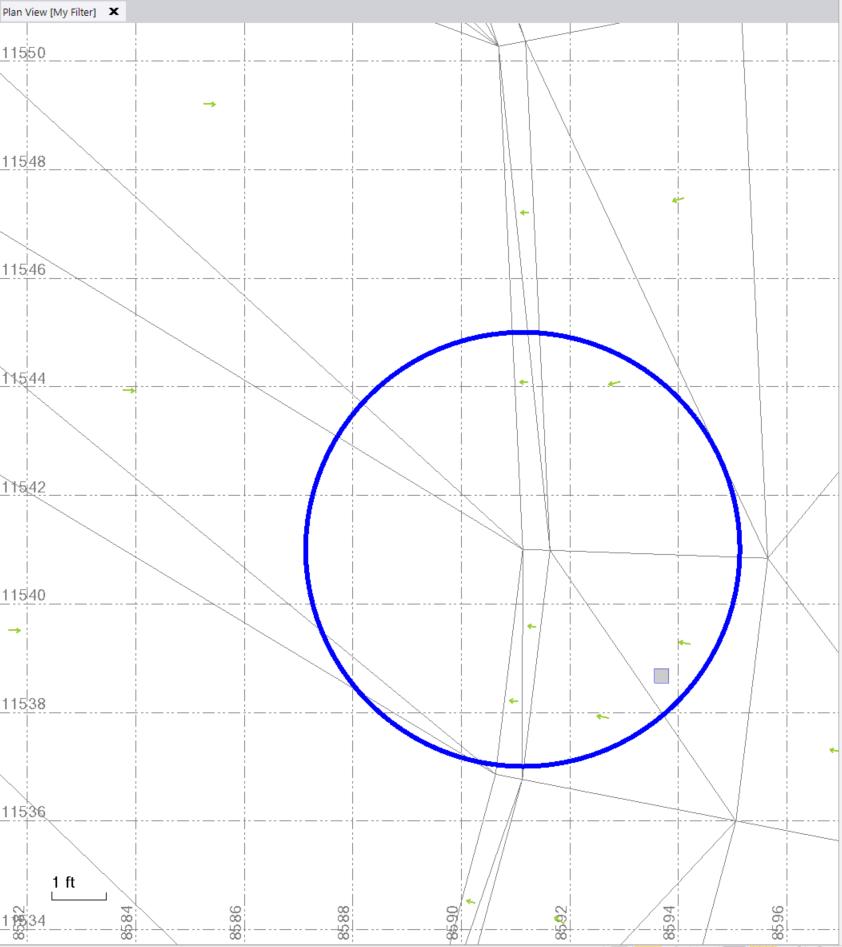
If you want to verify that the “Bird Baths” are correct - zoom in on the area around a bird bath, turn on the surface slope arrows and set the slope arrow length to be 0.2’ - that way you should see tat all the arrows point to the bird bath on all triangles around the bird bath.
Data Outputs
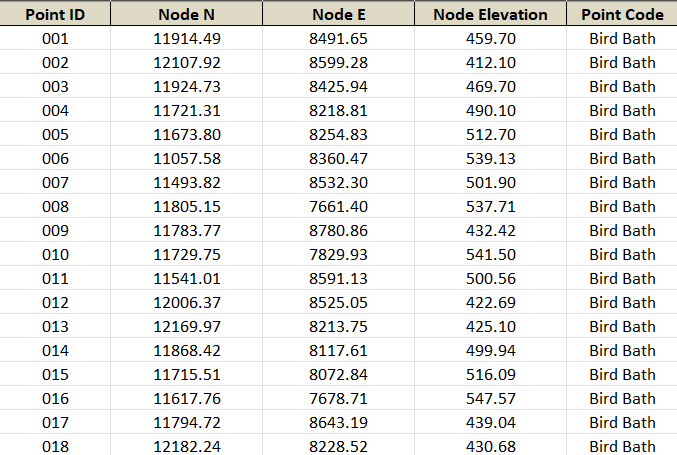
In addition to the TBC objects for the bird baths, the same circles are created in a DXF file called Bird Baths.DXF and an Excel File containing the following information called Bird Baths.xlsx