Quick Alignment Command

COMMAND LICENSING AND DEFAULT MENU LOCATIONS
- The Quick Alignment command is part of the RPS Modeling Toolbox.
- The command can be located on the Smart Suite and Modeling menu ribbons.
- The command is in the Design command group on the Smart Suite menu.
- The command is in the Corridor command group on the Modeling menu.
COMMAND DESCRIPTION
Converts one or more 2D or 3D linestrings or Polylines into alignments with optional alignment labels in a single step.
COMMAND HISTORY
Dec 2025
First release with RPS Command Library 2025.4.
COMMAND NOTES
When you import CAD files or extract linework from PDF files, you will often have the elements that make up the centerline alignments of roads or alignments of retaining walls, etc. The first step of the modeling process is to connect those elements together using, e.g., Smart Edit - Join to create continuous lines from the CAD Line and Arc elements provided. Once they have been joined together, the next thing to check is that the lines have the correct line direction (direction of increasing station from the plans). If not, you can use the Show Direction or Reverse Line commands to change the direction to what is required. You can use the Reverse Line function in this command to inspect and then reverse lines as needed. Use the Show Direction function to show the current direction of increasing station.
This command makes it extremely easy to create one or multiple alignments from imported CAD files.
As a follow-on, if your alignments have profile drawings (either CAD or PDF extracted data), then you can use the Smart Profile command to add the Vertical Alignment (Design Profile), Existing Profile, or Pipe Profiles to the path of the alignment as an extra step to create 3D data that you can use to build your roads or sewer runs.
VIDEO DEMONSTRATION
The video below shows how to use the Quick Alignment command:
The video below shows how to use Quick Alignment with Smart Elevate and / or Smart profile to create 3D Alignments using Profile Drawings:
SETUP AND CONFIGURATION
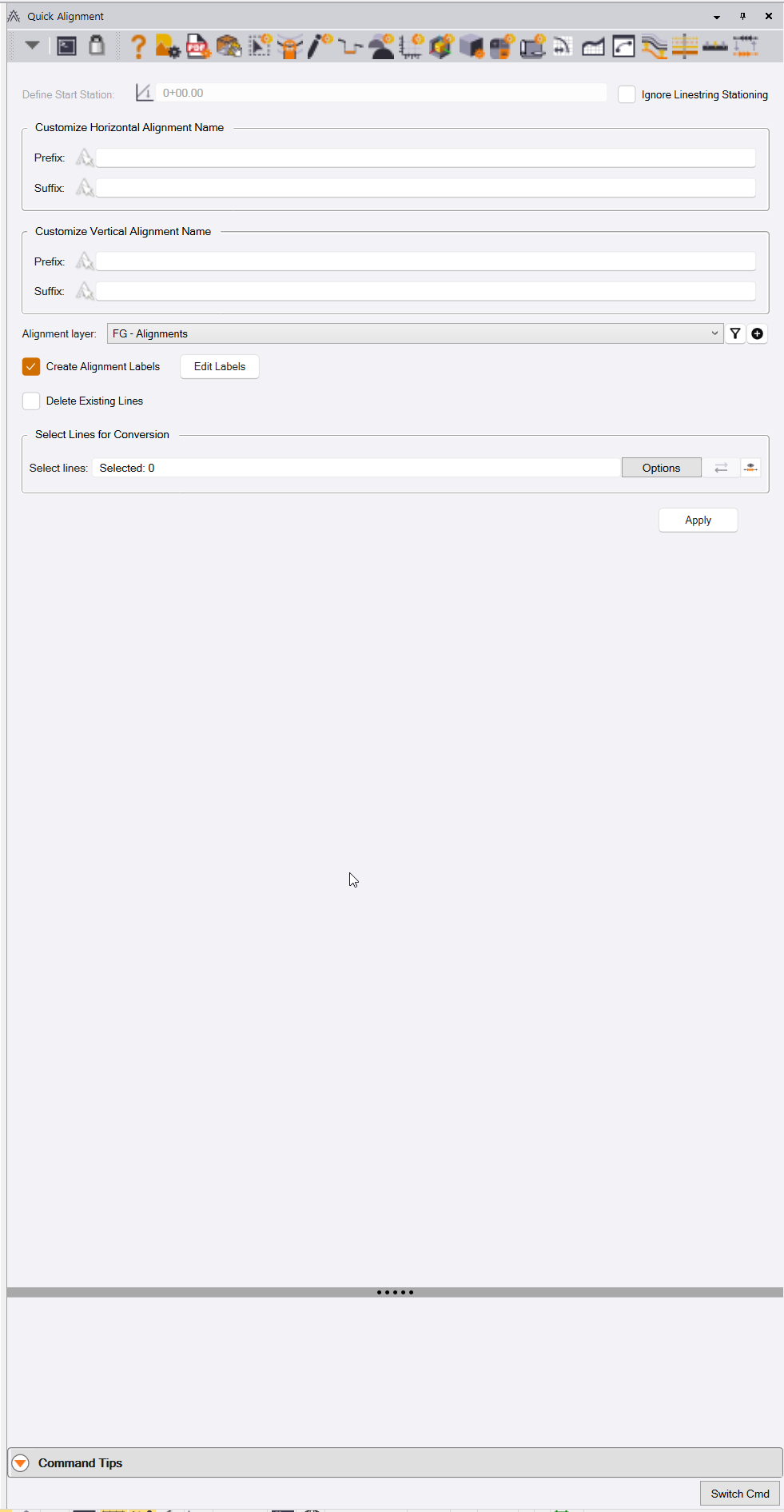
The Quick Alignment command dialog looks as follows:
When you select multiple alignments, all alignments will get the same start station unless the lines are linestrings that have been assigned the Start Station property via the Properties Pane.
When you process single alignments one at a time, you can assign a different start station to each alignment.
If you first use the TBC “backdoor” method of assigning stations to linestrings, i.e., if you name a linestring starting with two underscores, e.g., __HAL, then it will reveal its Station property. You can assign a station to the linestring, and that will be detected by the Quick Alignment command to create the correct start station for the alignment(s). Note that many RPS commands that edit, modify, or create linestrings will do this automatically, so you may find that a linestring you have in your project has already revealed its Station property.
Command Pre-requisites
The command will convert Polyline or Linestring objects into an alignment object. If the Linestring has vertical Geometry, that will be used to create the Vertical Alignment component of the new alignment object.
Name the lines with the names that you want to use for the alignments.
If the source lines are linestrings, you can set the start station for the linestring in the Properties Pane if they are non-zero. Use the Properties Pane to achieve this. Note that if the Station property is not visible, change the name of the line by adding two underscores to the front of the name to trigger the Station property to become visible. Normally, if you have edited any line using RPS Tools, the Station property will have been activated.
Customize Horizontal Alignment Name
Prefix for horizontal alignment name
If the lines that you select have a name, that name will be used for the alignment that is being created. If you wish to prefix the line name with some additional characters, enter them here. For example, if the source linestring is named HAL A, the alignment will be named HAL A. If you add a Prefix XXX -, then your alignment will be named XXX - HAL A.
Suffix for horizontal alignment name
If the lines that you select have a name, that name will be used for the alignment that is being created. If you wish to suffix the line name with some additional characters, enter them here. For example, if the source linestring is named HAL A, the alignment will be named HAL A. If you add a Suffix - XXX, then your alignment will be named HAL A - XXX.
Customize Vertical Alignment Name
Prefix for vertical alignment name
If the lines that you select have a name, that name will be used for the Vertical Alignment that is being created. If you wish to prefix the vertical line name with some additional characters, enter them here. For example, if the source linestring is named Narrow Leaf Drive, the Vertical Alignment will be named Narrow Leaf Drive. If you add a Prefix VAL -, then your alignment will be named VAL - Narrow Leaf Drive.
Suffix for vertical alignment name
If the lines that you select have a name, that name will be used for the Vertical Alignment that is being created. If you wish to suffix the vertical line name with some additional characters, enter them here. For example, if the source linestring is named Narrow Leaf Drive, the Vertical Alignment will be named Narrow Leaf Drive. If you add a Suffix - VAL, then your alignment will be named Narrow Leaf Drive - VAL.
Alignment Layer
Select the layer on which you want to place the alignments that are created by the command. You can create a new layer and use the layer filters through use of the buttons to the right of the Layer selector combo box.
The RPS default layer for this is FG - Alignments.
Create Alignment Labels checkbox
When checked, the alignments that are created will be labeled using the alignment label settings (defined in Project Settings - Abbreviations - Alignment Labels). This will place station labels and tick marks along the alignment, as well as label all PC, PT, POB, POE, and Station Equation points along the alignment.
Edit Labels button
If you wish to modify the way that the alignment labels look or which labels are applied, click the Edit Labels button to access the Alignment Labels settings editor (normally accessed using Project Settings - Abbreviations - Alignment Labels).
Delete Existing Lines checkbox
When enabled, the source lines will be deleted once the alignments have been created.
If you wish to retain the source lines after the alignments are created, leave the checkbox unchecked.
Note
If the source lines have vertical components (Grade Breaks, Vertical Curves, or Vertical Arcs), they will be used to create a Vertical Alignment for the alignment.
EXECUTE
Select Line
Select the CAD Lines, Polylines, or linestrings that you wish to convert into alignments. All line types except alignments will be automatically converted into 3D linestrings when selected and used in this command.
Restation Line
Use this option to change the stationing of the selected line by specifying an existing station value and the new station value that should be assigned at that same location.
Current Station
Enter the existing station value at the location on the selected line where you want the stationing to change. This identifies the point along the line that will be restationed.
Set To
Enter the new station value that you want assigned to the specified Current Station location. The stationing along the line will be recalculated from this new value without changing the line geometry.
INPUTS
Source Linework
Select one or more CAD Lines, Polylines, or Linestrings to use as the source geometry for the alignments.
Line Properties
The command will use the source line Name, Start Station, and vertical geometry, when available, when creating the alignment.
Restation Values
Optionally enter a Current Station and Set To station value to restation the selected line.
REPORTS
The Quick Alignment command does not generate a separate report. The results are created directly in the TBC project as alignment objects, including optional alignment labels and Vertical Alignment components when applicable.
HOT KEYS
U = Unlock
Q = Rotate Screen 15 degrees clockwise
E = Rotate Screen 15 Degrees anti clockwise
SHIFT Q = Rotate Screen 30 Degrees clockwise
SHIFT E = Rotate Screen 30 Degrees Anti Clockwise
WASD = Pan Up, Pan Left, Pan Down, Pan Right
SHIFT M = Pop Up Menu
Shift X = Undo Last Click or Pop Up Elevation Entry
X = Start Over
Z = Decrement
C = Increment
Shift Z = Reverse Direction to Downwards / Decrease (and decrease 2x)
Shift C = Reverse Direction to Upwards / Increase (and Increase by 2x)
HEADER BAR COMMANDS
In the Header Bar of the command, you will find quick-access buttons to other commands that you may find useful while running this command.
Header Bar commands include:
- Help
- RPS Settings
- RPS Smart CAD
- PDF Manager
- CAD Cleanup
- Smart Select
- Smart Draw
- Smart Edit
- Smart Elevate
- Smart Feature
- Smart Profile
- Smart BIM
- Smart Model
- Volumes Manager
- Smart TakeOff
- Smart Plot
- Create Alignment
- New Profile View
- Profile Viewer
- Multiple Offset Line
- Create XLINES
- Define Extra Stations
- Reverse Lines
COMMAND BUTTONS
Apply
Click the Apply button to execute the alignment / alignment label creation process. On completion, the command will prepare itself for another selection and repeat process.
SWITCH COMMAND BUTTON
Click the Switch Cmd button to switch to another running command. You can also select Close or Close All to close the current command or all running commands from the same option. The Switch Cmd function can also be executed using the ESC key on your keyboard. This will bring the Switch Command list of currently running Smart Suite commands up at your current mouse cursor position.
To exit a command, you can also press ESC ESC, provided the command mode that is currently running does not use the ESC key for another purpose. Smart Edit - Linestring Edit mode uses ESC to toggle from Edit to Select mode, so it disables ESC = Smart Switch while that mode is running.
HELP
In the Help area, you will find a shortcut link to this Help document and training video. You can also access this document by pressing F1 on your keyboard.
USE CASE VIDEOS
FEEDBACK AND ENHANCEMENT REQUESTS
If you would like to provide feedback on the use of the Quick Alignment command or to request enhancements or improvements to the command, please click Reply below.