RPS Community,
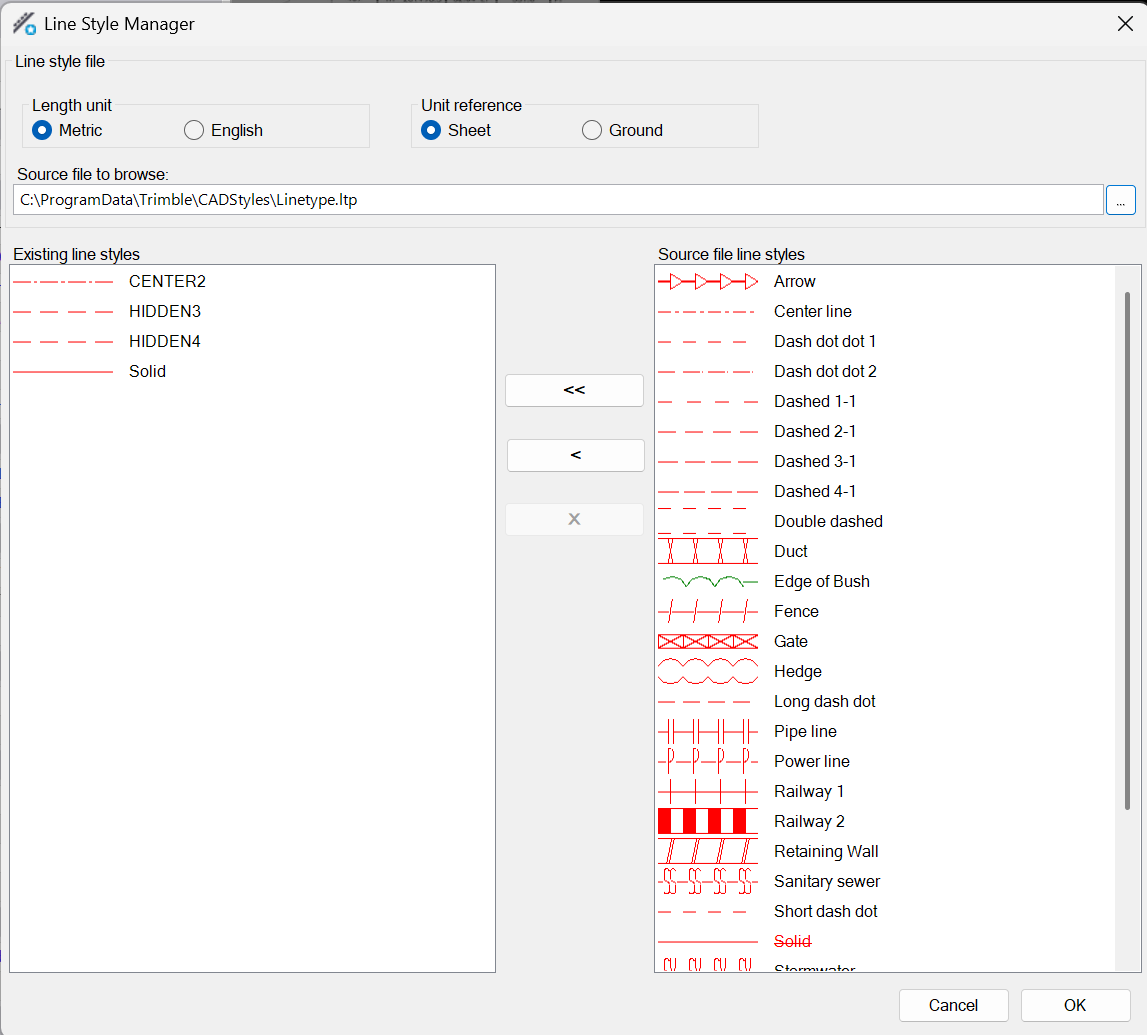
I am working on some classes and need to create Silt Fence, Water Line, and Sanitary Line types that are clean and legible. When I select the ones in the template, that I am not sure how they were created, they do not look clean. They are either huge, or so close that they look terrible. What switches do we have to control this? I see Line type scale in the properties, but that is the only switch I am aware of.
If you know of a Rockpile Video on this, please point me in that direction.
TBC ships with a bunch of simple style definitions, or you can import/make your own.
1 Like
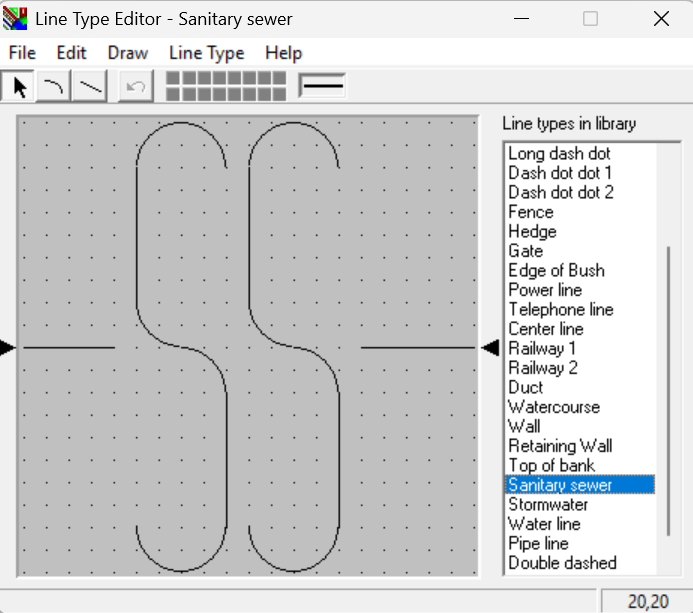
san sew linetype.dwg (173.1 KB)
here is one DWG you can drag n drop which will add the linetype to your list.
Thank you for taking the time to respond!
Thank you for the file! I am determined to make pretty pictures with Trimble.
Depending on what the linestyles you are trying to create look like, you can create a .LIN file which is the same as an AutoCAD.LIN file that contains the line definitions. These can contain Pen Up and Pen Down patterns with or without embedded text characters eg SAN or WM or ST etc for utility lines or if you choose the correct text font then you can also embed other special characters also.
If you search ACAD.lin online I am sure you will find example linestyles for most things and there are many libraries out there for free or for a small charge.
You can import these into TBC using the linetype commands (I have posted on the community about this in the past)
The .lin file is a text file that you can edit with notepad, I have recorded videos on how to edit / modify those in the past
https://community.myrockpile.com/t/working-with-linetypes/1381
Alan
1 Like
You can also use chat GPT with a request like
Can you create me a US Foot linestyle for the following types of CAD Standard Lines in the acad.lin format
Silt Fence
Water Main
Hot Water
Storm Sewer
Sanitary Sewer
Use a text font for the linestyles that is always installed on people’s computers like Segoe UI.
Alan
1 Like