I poked around searching the forum for this topic a bit but didn’t find anything.
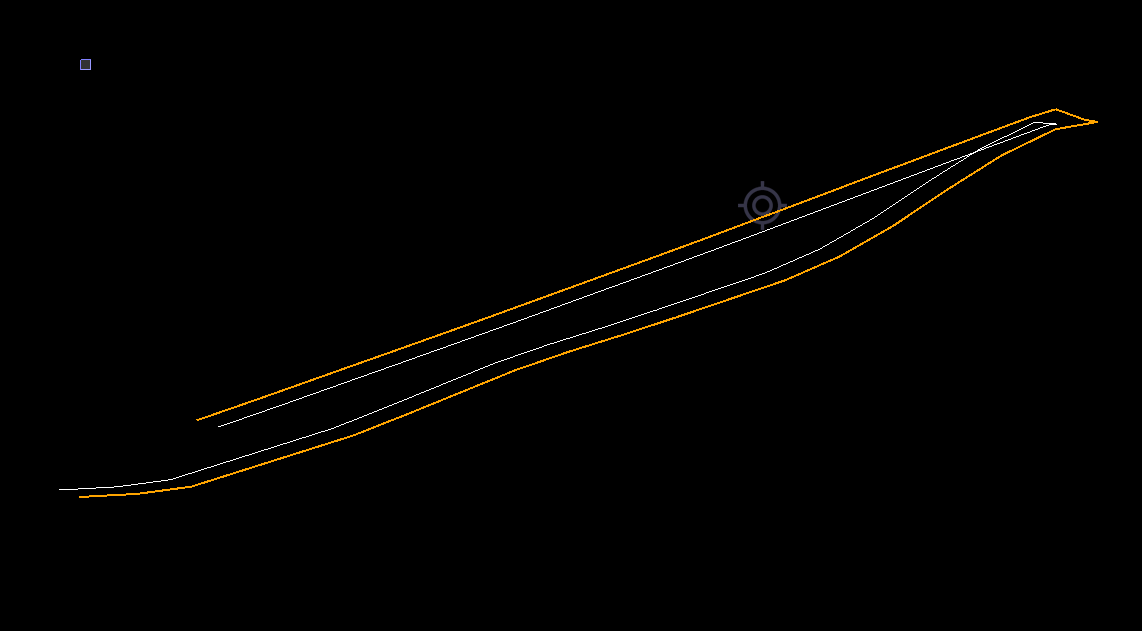
In creating an elevated linestring - with Stationing, not an alignment- using the linestring editor with a combination of horizontal/elevations and VPIs along the line.
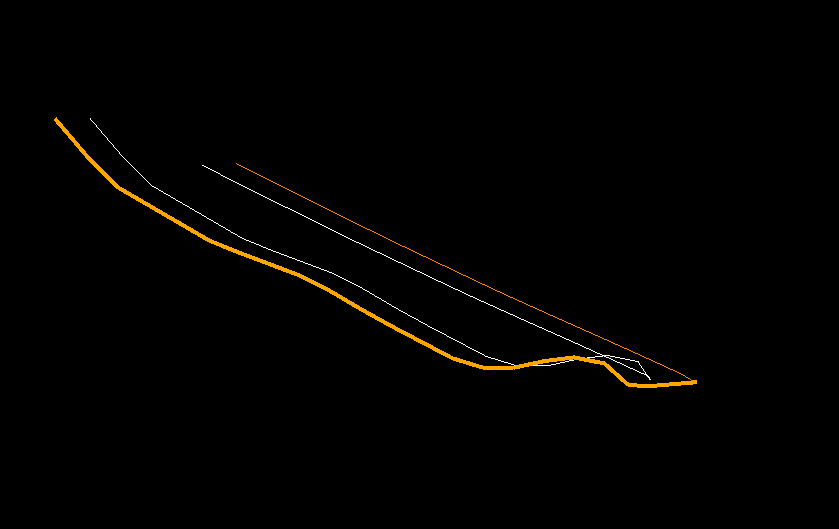
When I break the line, for whatever reason the entire detailed vertical make up of the line disappears. It appears to throw out the VPIs and hold only the end points. If the task is undone the line reverts to its original horizontal and vertical configuration.
Has anyone else encountred this? What needs done to correct the issue

The VPI elevations from the vertical tab of the linestring editor are positioned along the linestring based on their station from the beginning of the linestring. So if you have a VPI at station 500, but then you break the line and it is no longer 500 feet long then the VPI is off the end of it. The only way the elevations will be maintained while breaking a line is if the elevations are assigned to the PIs in the horizontal tab of the linestring editor.
1 Like
Alright, gotcha. Makes sense. So, working with Chris Bayliff, the long story short is in doing this type of thing the nodes on the line must be 3D. Adding 3D nodes in the TBC linestring editor did not fix it, but using the Rockpile Smart Edit did by converting the ‘suspect’ data to 3D nodes allowed me to break the line and retain the vertical profile. Thanks for the help. Kudos to Chris Bayliff for working through this.
1 Like
We had a few things happening here. There was a combination of 2D, 3D and VPI’s in this linestring. It just so happened, where Cliff wanted to break this line was on a 2D Node. To get around this issue, the Linestring Editor in Smart Edit has the fix.
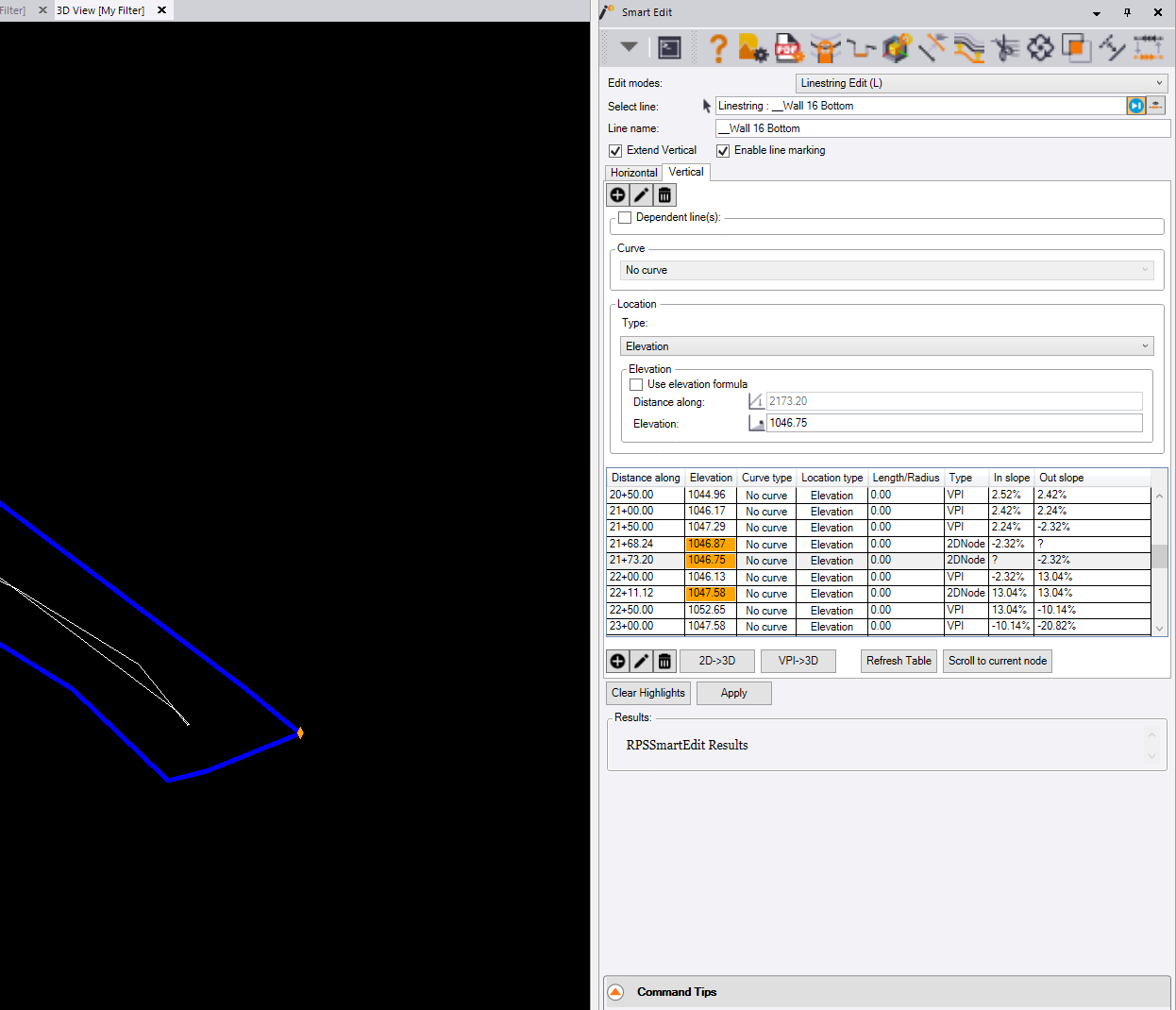
Open Smart Edit, go to the Linestring Edit mode and select the linestring. Once the command populates with the data, go to the Vertical tab shown below.
You can see in the elevation column, some of the elevation are highlighted orange, this denotes an elevation that’s being interpolated from the elevation on either side of this node. If you Break a line at this point, there’s no way to accurately calculate that elevation.
To fix this issue, we need to change these interpolated elevation to hard elevations. This is accomplished by using the 2D>3D button below the Elevation column. Once that is done, we want to hit the button next to it to convert the VPI’s to 3D nodes.
The reason for that is because of how the VPI is calculated. These are put in as a distance along the line. When you break the line, now you have 2 lines and they are shorter than they were. Because of this, you’re elevations will not be correct. Once they are converted to 3D points, you can break the line and you’re vertical will hold as you want it.
4 Likes
These issues if not in our release tools are fixed in the upcoming release using RPS Tools at least. When you say the elevations are all gone, you need to make sure that the line is really now 2D and that the Line markings did not just get turned off on the other half of the break point.
I have tested this today using all the latest versions of the tools and it seems to be behaving well in all scenarios I have looked at.
Alan